What you get
Mini Till is a till that runs in the browser on the phone, tablet or laptop you already own. There is nothing to download from an app store and no account to create. Open it, add your products and start selling.
- A product grid you tap. Prices, optional categories, a running total and the VAT contained in each sale.
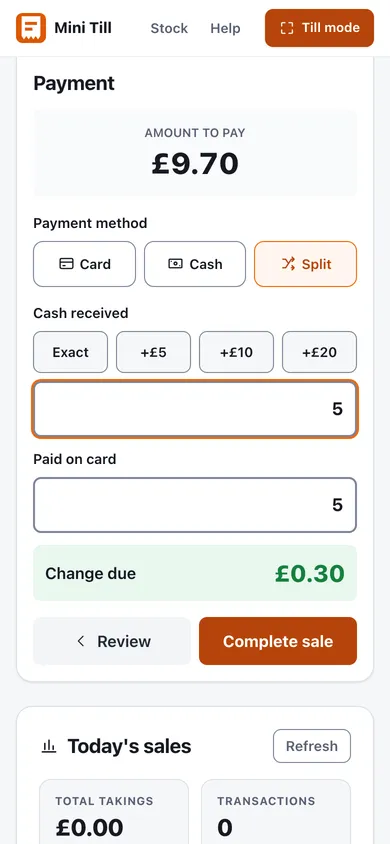
- Cash, card and split payments. It records how each sale was paid and works out the change.
- Works with no signal. Open it once with a connection and it keeps working in aeroplane mode. Sales are saved on the device.
- Installs to the home screen. It then opens full screen, like any other app.
- An end-of-day panel and a CSV export. Takings, number of sales, average sale, and the card and cash totals, then a spreadsheet of every sale.
- Printed receipts on request. Press Receipt on a sale and it goes to your browser's print dialogue.
How to install it on your phone or tablet
Open the till once while you have a connection. That first visit is what saves it to the device. Then add it to the home screen.
iPhone and iPad
- Open the till in Safari.
- Press the Share button.
- Choose Add to Home Screen, then Add.
Android
- Open the till in Chrome.
- Open the browser menu.
- Choose Install app or Add to Home screen, then confirm.
Installing matters for a practical reason. Browsers can clear the stored data of sites you have not used for a while, and an installed app is kept. Your products and sales live in the browser's storage on that device, so download a backup from the till now and then as well. It is one small file and it restores onto any device.
What it does not do
Being plain about the gaps saves a bad morning on a pitch.
- It does not take card payments. It records that a sale was paid by card. The money moves through a card reader from a payments provider. Taking card payments on a market stall covers how to choose one.
- It does not scan barcodes. You tap a labelled button for each product, which is quicker than scanning for a short menu or a stall's range.
- Your data stays on the device. That is why there is no account, and also why clearing your browser data deletes it. Use Backup and restore and the CSV export to keep copies.
- It does not refund money to a card. A completed sale can be voided in Sales history, but the refund itself goes through your card reader or out of the cash tin.
Which device?
| Device | Good for | Watch for |
|---|---|---|
| Phone | A stall or a van where you serve with one hand. Always in your pocket. | A small screen in bright sun. Keep the battery topped up. |
| Tablet | A bigger product grid and a screen the customer can see. Good for pop-ups. | It needs a stand, and a power bank for a long day. |
| Laptop | An indoor counter. The search box and keyboard shortcuts are available on a larger screen. | Not much use on a windy pitch. |
Each device keeps its own sales. You can send the product list to a second device as a link, so two people can serve with the same prices. If you want every till selling against one shared stock, that is what Mini Till Pro is for.
Till app, cash register app, POS app
These phrases describe the same job. A cash register app replaces the machine with a screen, a till app does the same with a product list, and a POS (point of sale) app is the usual name for the software behind either. What matters is what is included: a way to ring up items, record how they were paid, give change and see the day's totals. Mini Till does those things, and leaves out the parts a stall or a small counter rarely uses.
If you are weighing it against a paid system, what a till system costs goes through the options. For a longer walkthrough on a tablet, see setting up an iPad till for a pop-up.
Questions people ask
Is it free?
The till is free, with no account and no trial. The site carries a little advertising. The optional stock system for teams is paid, and the pricing page lists it.
Does it work without internet?
Yes, once it has been opened with a connection. Trading from a pitch is covered in a till that works with no signal.
Can I put it on two devices?
Yes. Each keeps its own sales, and you can share the product list between them as a link.
Where do my sales go?
They stay on your device until you export them. The FAQ covers backups, the CSV export and what happens if you clear your browser data.